
Running a restaurant already gives you enough numbers to watch.
There are daily sales, cash in the drawer, card payments, GCash and Maya collections, supplier deliveries, discounts, expenses, and—if you track them—ingredients sitting in the kitchen or storeroom.
Your POS handles what happens at the counter or table.
Oojeema handles what happens to those numbers after the sale.
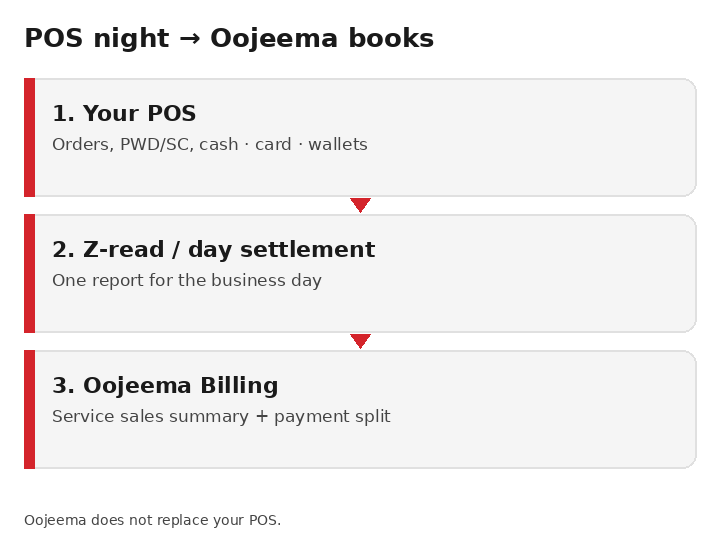
The important thing to understand is that Oojeema does not replace your restaurant POS, and you do not need to encode every order or every table again.
Instead, you can use your end-of-day POS settlement or Z-read to record the day’s activity in Oojeema.
This guide shows you how.
First: How a Restaurant Fits Into Oojeema
A restaurant works differently from a retail store.
When a customer orders an adobo meal, you are not really selling them:
-
200 grams of pork
-
50 grams of vegetables
-
cooking oil
-
rice
-
seasoning
You are selling them a prepared meal or service.
But when you buy from your suppliers, you are buying actual goods such as pork, rice, oil, milk, coffee beans, packaging, and other supplies.
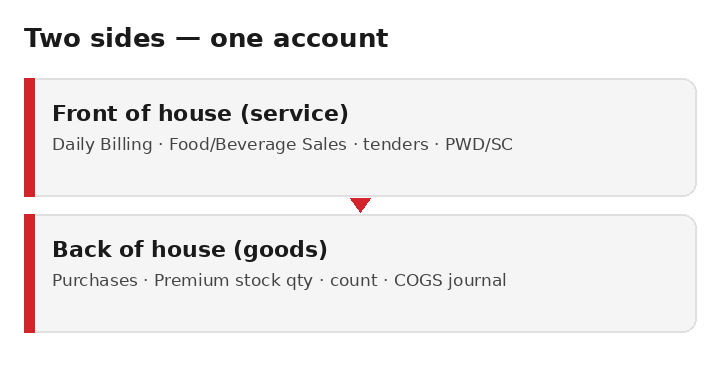
That gives your restaurant two sides:
Front of house: You sell meals and drinks.
Back of house: You buy ingredients and supplies.
In Oojeema, you can keep those two sides separate.
Your POS continues handling orders, tables, discounts, and payment methods during the shift.
Then Oojeema becomes your accounting record for your daily sales, collections, purchases, expenses, bank transactions, and financial reports. From those same posted books, Oojeema can help you prepare BIR forms and files—you or your accountant still file with BIR.
If you use Oojeema Premium, you can also track the quantity and average cost of selected ingredients and supplies.
Which Oojeema Plan Fits Your Restaurant?
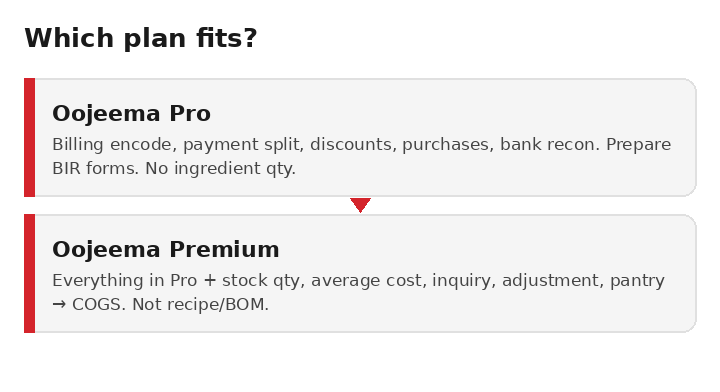
The main difference between Pro and Premium for a restaurant is inventory.
Oojeema Pro
Choose Pro if your main goal is to keep your:
-
daily sales
-
cash and digital payments
-
expenses
-
supplier purchases
-
accounting records
-
financial reports
-
BIR records
organized in one place.
Pro does not track ingredient quantities on hand.
You can still record ingredient purchases, but your actual stock count or food-cost computation will need to be handled separately with your accountant or another tracking method.
Oojeema Premium
Premium gives you everything above, plus:
-
ingredient quantities
-
stock movement
-
average cost
This is useful if you want to know how much pork, oil, milk, cups, coffee beans, or other important items you actually have on hand.
There is one important distinction:
Premium is not a full restaurant recipe or kitchen management system.
Selling one adobo meal from your POS will not automatically deduct a recipe containing pork, rice, oil, and other ingredients from Oojeema.
Instead, Premium gives you a practical way to manage the goods behind the restaurant through purchases, stock counts, adjustments, and cost-of-goods-sold entries.
Part 1: Using Oojeema Pro for Your Restaurant
If you already have a POS and mainly want clean accounting records, this is the simpler setup.
The goal is straightforward:
At the end of the day, your POS and your books should tell the same story.
You should be able to see how much you sold, how customers paid, how much discount was given, and where the money went.
Step 1: Set Up Your Basic Accounts
It is best to do this once with your accountant.
You will normally want separate accounts for the different places where your restaurant’s money sits.
For example:
Money and payment accounts
-
Cash on Hand
-
Cash in Bank
-
Card Clearing
-
GCash Wallet or Clearing
-
Maya Wallet or Clearing
-
QRPh Clearing, if applicable
Why separate them?
Because a ₱1,000 card sale does not necessarily reach your bank account immediately.
The customer has already paid you, but the card provider may settle the money tomorrow or several days later.
Keeping a separate Card Clearing account makes it much easier to see what is still waiting to be deposited.
The same idea can be used for GCash, Maya, or other payment providers.
You can also set up sales accounts such as:
-
Food Sales
-
Beverage Sales
-
Other Sales
For discounts, it is helpful to separate mandated discounts from regular promotions.
For example:
-
Sales Discounts — PWD / Senior Citizen
-
Sales Discounts — Promo / Other
You may also want separate accounts for:
-
Merchant or Card Fees
-
Wallet or Gateway Fees
-
Food Purchases
-
Supplies
-
Other restaurant expenses
Your accountant can help you decide the exact account structure that is appropriate for your business.
Step 2: Keep Your Sales Items Simple
You do not have to recreate your entire restaurant menu inside Oojeema just to record your daily POS sales.
Instead, you can use simple summary items such as:
Food Sales
Beverage Sales
If your POS separates other meaningful categories, you can add those too.
The idea is to summarize the business day, not re-encode every burger, latte, rice meal, or table order.
Step 3: Create One Customer for Your Daily POS Sales
You can create a customer such as:
Daily POS Sales
Then use this customer whenever you record your restaurant’s daily POS settlement.
You do not need to create a customer for every walk-in diner.
Your Daily Routine: POS to Oojeema
This can become part of your restaurant’s closing routine.
1. Close Your POS
At the end of the shift, get your POS settlement or Z-read.
You will normally want to see:
-
Food sales
-
Beverage sales
-
Other sales, if applicable
-
PWD discounts
-
Senior Citizen discounts
-
Other promotions or discounts
-
Net collections
-
Cash payments
-
Card payments
-
GCash payments
-
Maya payments
-
QRPh payments
Your POS remains your detailed record of what happened during the shift.
Oojeema records the accounting summary.
2. Create One Billing Entry for the Business Day
In Oojeema:
Go to Billing and create a new transaction.
Use the actual business date of the restaurant shift.
For the customer, select:
Daily POS Sales
Then enter your summary service sales categories.
For example:
Food Sales — ₱45,000
Beverage Sales — ₱12,000
Hard rule: use summary service items only for this daily entry—Food Sales, Beverage Sales, and similar.
Do not put ingredient stock items (pork, oil, cups) on the guest-day Billing. Those belong in purchases and, on Premium, in the pantry. Mixing stock SKUs into the daily POS summary can change how inventory behaves and breaks the restaurant fit.
The important thing is that the peso figures follow the report from your POS.
3. Record Your PWD and Senior Citizen Discounts
Do not simply reduce the sales figure until the discount disappears.
Keeping discounts visible makes it easier for you and your accountant to review them later.
You can record your PWD and Senior Citizen discounts under the discount account your accountant prepared for you.
You may also keep regular promos separate.
For example:
PWD / SC Discount: ₱3,200
Promo Discount: ₱800
This gives you a much clearer picture of how much discount your restaurant is actually giving.
Your POS should remain responsible for determining the customer discount and eligibility during the transaction.
For VAT treatment and the accounting setup for PWD and Senior Citizen transactions, follow the method established by your accountant.
4. Record How Customers Actually Paid
Now match the day’s collections with your POS tender report.
For example:
| Customer Paid Through | Record To |
|---|---|
| Cash | Cash on Hand |
| Credit/Debit Card | Card Clearing |
| GCash | GCash Wallet / Clearing |
| Maya | Maya Wallet / Clearing |
| QRPh | QRPh Clearing |
This is one of the most useful habits you can build.
Instead of seeing only one big “sales” number, you can also see where the money should be.
If your POS says you collected ₱20,000 in cash, your accounting records should tell the same story.
5. Check the Cash Drawer
After recording the day’s sales, compare the expected cash against the actual cash in your drawer.
If there is an overage or shortage, do not change your sales simply to make the numbers match.
Use the account or procedure established by your accountant for cash overages or shortages.
That way, you can see the real difference instead of hiding it inside your sales figure.
What Happens to Card, GCash, and Maya Payments Tomorrow?
This is where many restaurant owners get confused.
Imagine you sold ₱15,000 through cards today.
The customer already paid you.
But the ₱15,000 may not yet be inside your bank account tonight.
That is why you recorded it under Card Clearing.
When the card provider eventually deposits the amount into your bank, record that deposit in Oojeema the way your accountant set up—usually through your Bank entries or a Journal Voucher, not a special one-click “clear card” button.
In accounting terms, you are moving the balance from:
Card Clearing → Cash in Bank
If the provider deducted a fee, record the merchant fee in the same sitting, using the fee account your accountant prepared.
You can follow the same idea for:
-
GCash
-
Maya
-
QRPh
-
other payment providers
The result is a cleaner trail:
Customer paid → provider held the money → you record the bank deposit → money shows in Cash in Bank
How Do Ingredient Purchases Work on Pro?
Let’s say your supplier delivers:
-
pork
-
chicken
-
rice
-
cooking oil
-
vegetables
You can record those supplier purchases in Oojeema.
You can also record when the supplier is paid.
What Pro does not do is maintain the physical quantity of those ingredients inside the inventory module.
So you might know that you purchased ₱40,000 worth of food supplies, but Pro is not going to tell you that you currently have 18.5 kg of pork left in the freezer.
For many restaurants, this can still work well.
Your daily sales are organized.
Your purchases are recorded.
Your expenses are complete.
Your accountant can then use your purchases and other records to compute or review your food cost.
If the day comes when you want ingredient quantities and average costs inside Oojeema, that is when Premium becomes more useful.
A Simple Weekly Routine for Pro
Once a week, check a few things.
Make sure:
-
Every operating day has been recorded.
-
Your Cash on Hand balance makes sense.
-
Card settlements are being cleared.
-
GCash and Maya balances are being cleared properly.
-
PWD and Senior Citizen discounts look reasonable compared with your POS records.
-
Supplier purchases and restaurant expenses are complete.
You do not need to turn this into another complicated restaurant process.
The important thing is consistency.
One missing day creates more problems than having simple item names.
Your Monthly Check With Your Accountant
At the end of the month, you and your accountant can review:
-
bank reconciliation
-
card and payment-provider fees
-
supplier purchases
-
expenses
-
PWD / SC discounts
-
POS versus Oojeema spot checks
-
financial reports
-
BIR forms and files prepared from the books (you or your CPA file them)
A good practice is to choose a few random operating days and compare:
POS Z-read → Oojeema daily entry
If those days tell the same story, you have much more confidence in the month’s numbers.
Part 2: Using Oojeema Premium for Your Restaurant
Premium follows the same daily sales routine as Pro.
You still use your POS to run the restaurant.
You still record the day’s service sales from your POS settlement.
You still separate cash, cards, GCash, Maya, and other payment methods.
The difference is what happens in the kitchen and storeroom.
With Premium, you can also track selected ingredients and supplies as inventory.
Think of Premium as Two Parts of the Restaurant
The front
Your customers buy:
-
meals
-
drinks
-
prepared food
-
restaurant service
This is recorded through your daily Billing entry.
The back
Your restaurant buys:
-
pork
-
chicken
-
rice
-
oil
-
milk
-
coffee beans
-
cups and packaging
-
other supplies
These are the goods behind the service.
On Premium, those goods can live on stock cards inside Oojeema—with quantity on hand and average cost.
That is the restaurant fit.
Guests still buy the meal.
You still buy the ingredients.
Oojeema can hold both sides without forcing you to pretend the customer bought 200 grams of pork at the cashier.
One Important Expectation
Premium is not a full recipe or kitchen production system.
When your POS sells one adobo meal, Oojeema will not automatically deduct a recipe of pork, rice, oil, and seasoning from stock.
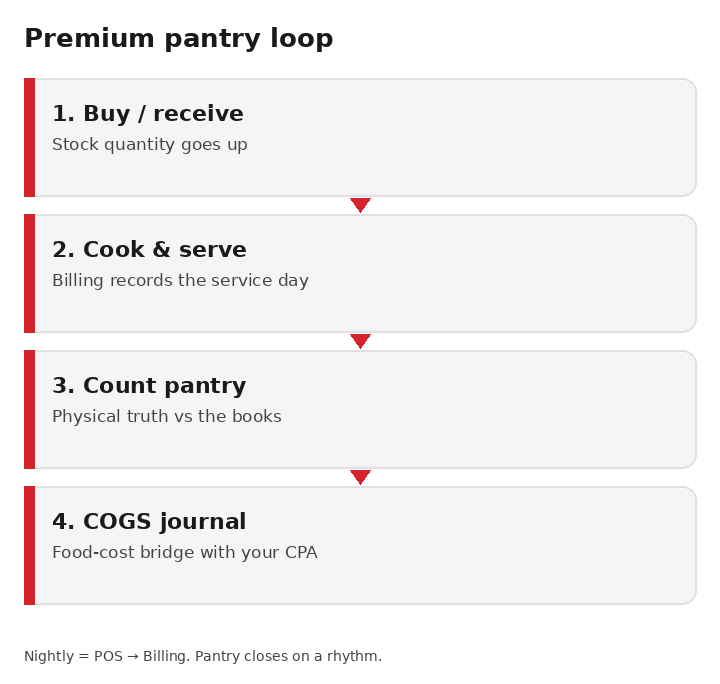
What Premium gives you instead is a practical pantry loop:
- Receive ingredient purchases into stock.
- Count what is left.
- Adjust the books to the count.
- Book cost of goods sold for the period with your accountant.
Daily life stays simple:
Nightly = service sales and money from the POS.
Pantry = goods received, counted, and costed.
Step 1: Start With the Pro Setup
Do the Pro setup first.
You still need:
-
payment accounts for cash, card, GCash, Maya, and QRPh
-
sales accounts for food and beverages
-
discount accounts for PWD / Senior Citizen and promos
-
one Daily POS Sales customer
-
the nightly Billing habit from your Z-read
Premium does not replace that routine.
It adds the back-of-house inventory layer on top of it.
Step 2: Decide What Deserves a Stock Card
Do not track everything on day one.
Start with ingredients and supplies that you:
-
buy often
-
care about if they disappear
-
can count in a reasonable amount of time
Good starting examples:
-
pork
-
chicken
-
cooking oil
-
rice
-
milk
-
coffee beans
-
specialty cheese
-
disposable cups
You can skip low-value clutter at the start, such as salt sachets or tiny condiments, until the habit is steady.
Step 3: Create Ingredient Items the Kitchen Can Count
For each tracked item:
- Use a clear name the kitchen understands, such as Pork belly or Cooking oil.
- Set the stock unit to the unit you actually count—kilograms, liters, or pieces.
- If your supplier sells a 25 kg sack, still keep stock in kg if that is how you count. Convert when you receive the delivery.
- Link the inventory account your accountant wants for that item.
Keep two kinds of items separate in your mind:
Service items such as Food Sales and Beverage Sales → used in the daily Billing from the POS.
Goods items such as Pork belly and Cooking oil → used when you receive purchases and when you count stock.
Mixing those two is what makes restaurant books feel wrong.
Step 4: Enter Your Opening Stock Once
Before you trust the numbers, count what is already in the freezer, chiller, and storeroom.
Then enter the opening quantities and values the way your accountant specifies.
Do not guess.
A bad opening inventory will distort every food-cost conversation later.
Your Daily Front-of-House Routine on Premium
This is the same as Pro.
- Close the POS and get the Z-read.
- Create one Billing for the business day.
- Enter Food Sales and Beverage Sales from the POS (summary service items only—not ingredient stock SKUs).
- Record PWD / Senior Citizen discounts separately from promos.
- Split collections into Cash, Card Clearing, GCash, Maya, and QRPh.
- Check the cash drawer.
- Clear card and wallet settlements when the money reaches the bank.
Do not try to deduct pork from inventory every time adobo sells on the POS.
That is not the Premium daily habit.
Nightly work is still about service sales and money.
When Ingredients Arrive: Receive the Goods
Let’s say your supplier delivers 20 kg of pork belly and 10 liters of oil.
1. Check the delivery against the supplier document
Confirm quantities, prices, and obvious spoilage before anything hits the books.
2. Record the purchase in Oojeema
Enter the supplier, date, and lines using your ingredient stock items.
Use the stock unit.
If the invoice says one 25 kg sack and your stock unit is kg, receive 25 kg—not “1 sack” as a second kind of inventory.
When you post the purchase, quantity on hand should rise and average cost should update.
3. Record the payment to the supplier
Pay from Cash in Bank or Cash on Hand, whichever is true in real life.
Now your pantry and your payables tell the same story.
How Inventory Tracking Works When You Sell Service
This is the heart of Premium for restaurants.
You buy goods.
You sell service.
Stock does not magically fall every time a plate leaves the pass.
Instead, you close the pantry on a rhythm—weekly is enough for many small restaurants.
The loop
Buy goods → stock quantity goes up
Cook and serve → POS and Billing record the service day
Count the pantry → see what is still there
Compute usage → beginning + purchases − ending
Book cost of goods sold → move used ingredient cost into food cost for the period
That is how ingredient inventory supports a restaurant without turning every guest check into a bill of materials.
A Simple Pantry Close on Premium
1. Pick your count day
Weekly works well for proteins, produce, and other high-value items.
Monthly only works if your volume is low and the discipline is real.
2. Review stock movement in Oojeema
Use Inventory Inquiry, Inventory Movement, or your stock reports for the period so you can see purchases and adjustments.
3. Do a physical count
Count in the same unit as the stock card.
Two people are better than one optimistic estimate.
4. Compare system quantity versus physical quantity
If pork is far off, investigate before forcing the books.
Common causes:
-
receiving errors
-
wrong unit
-
spoilage not recorded
-
theft or portion drift
5. Adjust stock to the physical count
Post the adjustment so on-hand matches what is actually in the freezer or storeroom.
6. Book cost of goods sold with your accountant
A common journal shape is:
Debit: Cost of Goods Sold
Credit: Inventory
The amount should tie to the usage your count supports, using the method your accountant locked for the shop.
This journal is the bridge.
It turns ingredients you bought as goods into food cost for the meals you sold as service.
7. Read the result
Now you can talk about food cost in a useful way:
Food sales from your daily Billing
versus
COGS from your pantry close
That is much better than guessing from the walk-in freezer door.
PWD, Senior Citizen, Card, and Wallet Handling on Premium
These do not change just because you turned inventory on.
PWD and Senior Citizen discounts still belong on the daily service Billing.
Card, GCash, Maya, and QRPh still clear into the bank the same way as Pro.
Inventory is a back-of-house layer.
It should not complicate the front-of-house money trail.
A Simple Weekly Routine for Premium
In addition to the Pro weekly checks, also make sure:
- Deliveries were received into the right ingredient items.
- Your next count date is clear.
- Key items are not sitting at odd negative quantities without an explanation.
- Spoilage or known losses were adjusted instead of ignored.
Your Monthly Check With Your Accountant on Premium
Review everything from the Pro monthly list, plus:
-
physical inventory count or accepted cycle counts
-
inventory adjustments
-
cost of goods sold journal
-
whether the inventory balance on your reports still looks believable
-
food cost percentage using service food sales versus COGS
If sales, collections, purchases, and pantry counts all tell one story, Premium is doing its job.
Which Plan Should You Choose?
Choose Pro if your priority is:
-
clean daily POS accounting
-
clear cash and digital collections
-
complete purchases and expenses
-
reports from one set of books, and BIR forms you can prepare from those books
and you are fine handling detailed ingredient quantities outside Oojeema for now.
Choose Premium if you also want to answer questions like:
-
How much pork is left?
-
What is our average cost on oil right now?
-
Does this month’s food cost make sense after the count?
Both plans fit a restaurant that sells meals as service and buys ingredients as goods.
Premium simply lets the pantry live inside the same Oojeema account.
A Closing Routine You Can Actually Keep
Every night
- Save the POS Z-read.
- Record one Billing for the business day.
- Enter food and beverage sales.
- Record PWD / SC discounts separately from promos.
- Split cash, card, GCash, Maya, and QRPh.
- Check the drawer.
When settlements arrive
Record the bank deposit (or journal) that moves Card Clearing, GCash, Maya, or QRPh into Cash in Bank—the same method your accountant set up.
Record provider fees in that same habit.
When deliveries arrive
Pro: record the purchase and the payment.
Premium: receive into ingredient stock, then record the payment.
On count day (Premium)
Count → adjust → book COGS with your accountant’s method.
Final Thought
Your POS is built for the rush.
Oojeema is built for what the rush means to the business.
Used this way, you are not retyping every table, and you are not pretending a restaurant is a grocery checkout.
You are keeping one clean trail from the counter to the books—and on Premium, all the way into the pantry.
That is how Oojeema fits a restaurant.
Ready to try this on your Oojeema account? See Pro and Premium plans, or start a 14-day trial. For stock detail on Premium, see Inventory.
Not legal or tax advice. Follow your accountant for VAT treatment of PWD and Senior Citizen transactions, and for the exact accounts and journals that fit your shop. Oojeema helps prepare BIR forms and files from posted books—you or your CPA file with BIR.
